
Introduction
Apple Music is a streaming service developed by Apple Inc. that allows users to access millions of songs, albums, playlists, and music videos. With Apple Music, users can listen to music on any device, including their iPhones, iPads, Macs, and PCs. In addition to streaming music, users can also download music to their devices for offline listening.
In this article, we’ll explore how to download music to Apple Music. We’ll look at how to search for and purchase music in the app, how to use iTunes to purchase and download music, how to sync music from other devices, how to sign up for a subscription to Apple Music, how to stream music from the website, how to use AirDrop to transfer music between devices, and how to download music from third-party sites with DRM protection.
Download Music from the Apple Music App
The easiest way to download music to Apple Music is through the app. Here’s how you can download music from the Apple Music app.
How to Search for Music in the App
To find music in the Apple Music app, simply type the name of the artist, album, or song into the search bar. You can also browse music by genre, mood, or activity. Once you’ve found the music you’re looking for, you can add it to your library or create a playlist.
How to Purchase and Download Songs in the App
Once you’ve found the music you want to download, you can purchase it in the app. To do this, simply tap the buy button next to the song or album. The music will then be added to your library and you can start listening to it right away.
How to Save Songs for Offline Listening
If you want to save songs for offline listening, you can do so by tapping the download button next to the song or album. This will save the music to your device and allow you to listen to it even when you don’t have an internet connection.
Use iTunes to Purchase and Download Music
In addition to downloading music from the Apple Music app, you can also use iTunes to purchase and download music. Here’s how to do it.
How to Navigate the iTunes Store
To access the iTunes Store, open the iTunes app on your device. From here, you can browse music by genre, artist, or album. You can also search for specific songs or albums.
How to Buy and Download Music from iTunes
Once you’ve found the music you want to purchase and download, simply tap the buy button next to the song or album. The music will then be added to your library and you can start listening to it right away.
How to Sync Purchased Music with Your Apple Music Library
If you want to sync your purchased music with your Apple Music library, you can do so by going to the Settings tab in the iTunes app and selecting the “Sync Library” option. This will allow you to access your purchased music from any device, as long as you’re signed in to your Apple ID.
Sync Music from an Existing iTunes Library
If you already have an existing iTunes library, you can sync the music from that library to your Apple Music account. Here’s how.
How to Transfer Music from an Existing iTunes Library
To transfer music from an existing iTunes library, open the iTunes app on your device and select the “File” menu. Then, select the “Add to Library” option and choose the folder containing your music. This will add all of the music in the folder to your Apple Music library.
How to Sync Music from Other Devices Using iCloud Music Library
You can also sync music from other devices to your Apple Music library using iCloud Music Library. To do this, go to the Settings tab in the iTunes app and select the “iCloud Music Library” option. Then, follow the instructions to sync your music from other devices.
Sign Up for a Subscription to Apple Music
If you want to take advantage of all the features Apple Music has to offer, you can sign up for an Apple Music membership. Here’s how.
How to Sign Up for an Apple Music Membership
To sign up for an Apple Music membership, open the Apple Music app on your device and select the “Membership” tab. From here, you can select the type of membership you’d like and follow the instructions to complete sign-up.
What Features are Included with a Subscription
With an Apple Music subscription, you’ll have access to all of the features of the Apple Music app, including unlimited streaming of over 50 million songs, personalized playlists, exclusive content, and more. You’ll also get access to Beats 1 radio, where you can listen to live broadcasts from DJs around the world.
How to Manage Your Subscription Settings
Once you’ve signed up for a membership, you can manage your subscription settings in the Apple Music app. To do this, open the app and select the “Account” tab. From here, you can view your current plan and make changes to your subscription.

Stream Music Directly from the Apple Music Website
In addition to downloading and purchasing music, you can also stream music directly from the Apple Music website. Here’s what you need to know.
How to Access the Apple Music Website
To access the Apple Music website, simply go to music.apple.com. This will take you to the homepage of the Apple Music website, where you can browse music, create playlists, and more.
What Streaming Options are Available
On the Apple Music website, you can stream music for free. You can also stream music from your library or playlists, as well as listen to radio stations and curated playlists.
How to Save Songs for Offline Listening
If you want to save songs for offline listening, you can do so by clicking the download button next to the song or album. This will save the music to your device and allow you to listen to it even when you don’t have an internet connection.
Use AirDrop to Transfer Music from Another Device
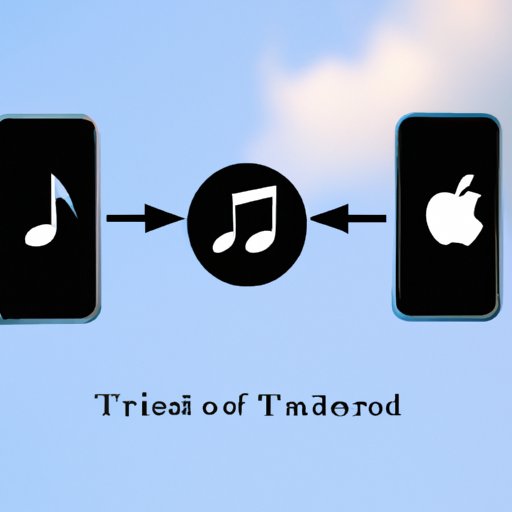
If you have music stored on another device, you can use AirDrop to transfer it to your Apple Music library. Here’s how.
How to Use AirDrop to Share Music Between Devices
To share music between devices using AirDrop, open the AirDrop menu on both devices. Select the device you want to send the music to and then select the files you want to transfer. The music will then be transferred to the other device.
What Types of Files Can Be Transferred via AirDrop
AirDrop can be used to transfer most types of audio files, including MP3s, AACs, and WAVs. It can also be used to transfer some video files, such as MOVs and MPEGs.
How to Save Music from AirDrop on Your Device
Once you’ve received the music files via AirDrop, you can save them to your device by opening the AirDrop menu and selecting the files you want to save. The music will then be added to your library and you can start listening to it right away.
Download Music from Third-Party Sites with DRM Protection
In some cases, you may need to download music from third-party sites that have Digital Rights Management (DRM) protection. Here’s what you need to know.
What is Digital Rights Management (DRM)?
Digital Rights Management (DRM) is a system designed to protect digital media from unauthorized access and copying. When music is protected by DRM, it can only be accessed and played on certain devices.
What Sites Offer DRM-Protected Music?
There are a number of sites that offer DRM-protected music, including Amazon Music, Google Play Music, and Spotify. Each site has its own terms and conditions for accessing and playing DRM-protected music.
How to Download and Save DRM-Protected Music
To download and save DRM-protected music, simply visit the website where the music is available and follow the instructions to purchase and download the music. Once the music is downloaded, it will be saved to your device and you can start listening to it right away.
Conclusion
Downloading music to Apple Music is easy and convenient. You can download music from the app, use iTunes to purchase and download music, sync music from other devices, sign up for a subscription to Apple Music, stream music from the website, use AirDrop to transfer music between devices, and download music from third-party sites with DRM protection.
When managing your music library, it’s important to keep track of which songs you’ve purchased and which ones you’ve downloaded for free. This will help you avoid duplicates and ensure that all of your music is organized and easy to access.
(Note: Is this article not meeting your expectations? Do you have knowledge or insights to share? Unlock new opportunities and expand your reach by joining our authors team. Click Registration to join us and share your expertise with our readers.)